
Zoom
Meetings, webinars, recordings, and registrants — connected to Hops.
Hops's Zoom integration lets Hops schedule and manage meetings, run webinars, pull recordings and transcripts, and act on registrants from any Space — without leaving the thread.
Requirements
- A Zoom account with permission to authorize third-party apps for your workspace.
- A Hops workspace where you can add and share connections (any member can add a personal connection; workspace admins can share it with others).
Connect Zoom
Open Connections in Hops
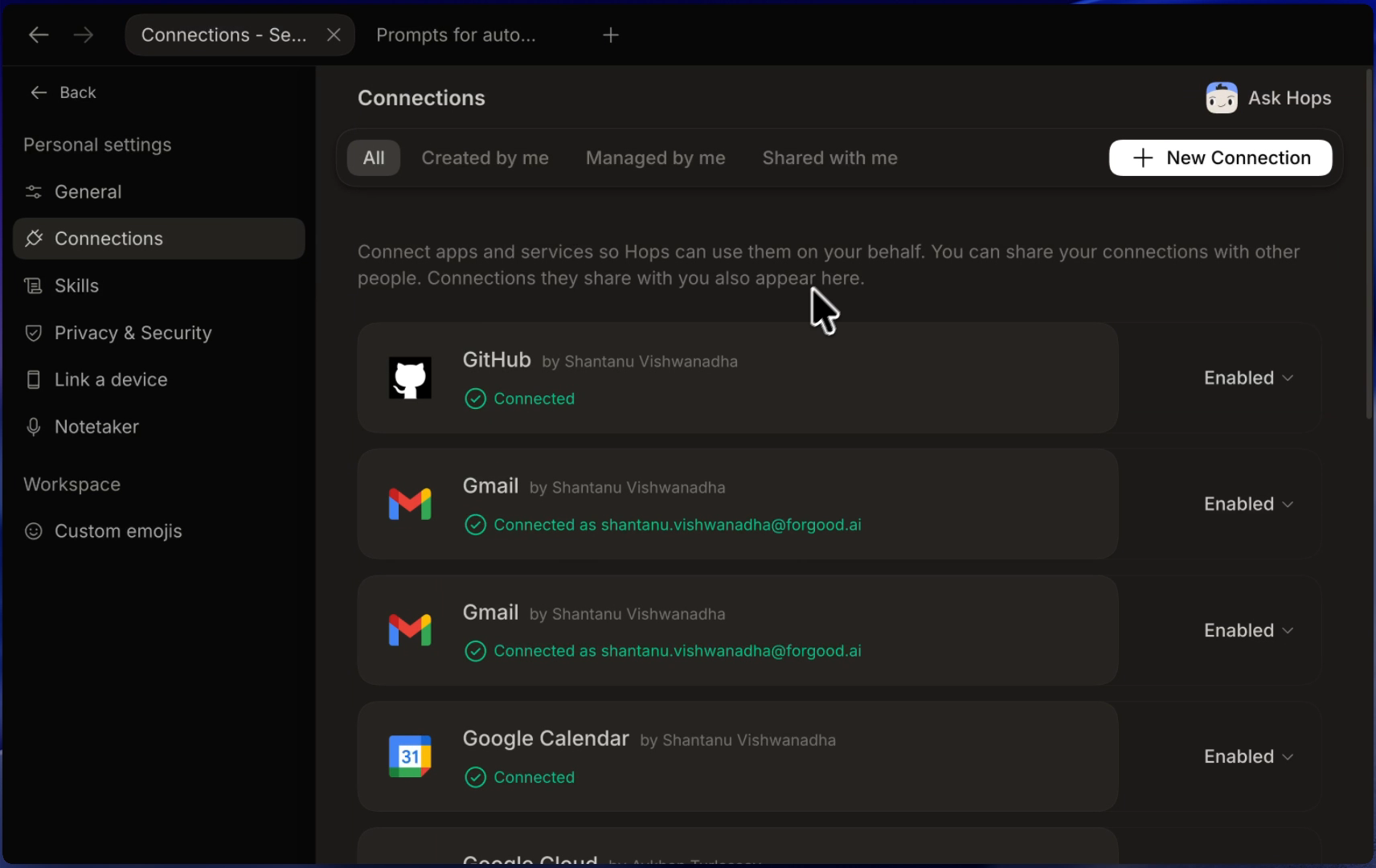
Click the Settings icon at the bottom of the left sidebar, then go to Connections and click + New Connection.
Search for Zoom
In the Connect app dialog, type
zoomand pick the Zoom tile (Meetings, webinars, recordings, and registrants). Click Connect to open Zoom's authorization page in a new tab.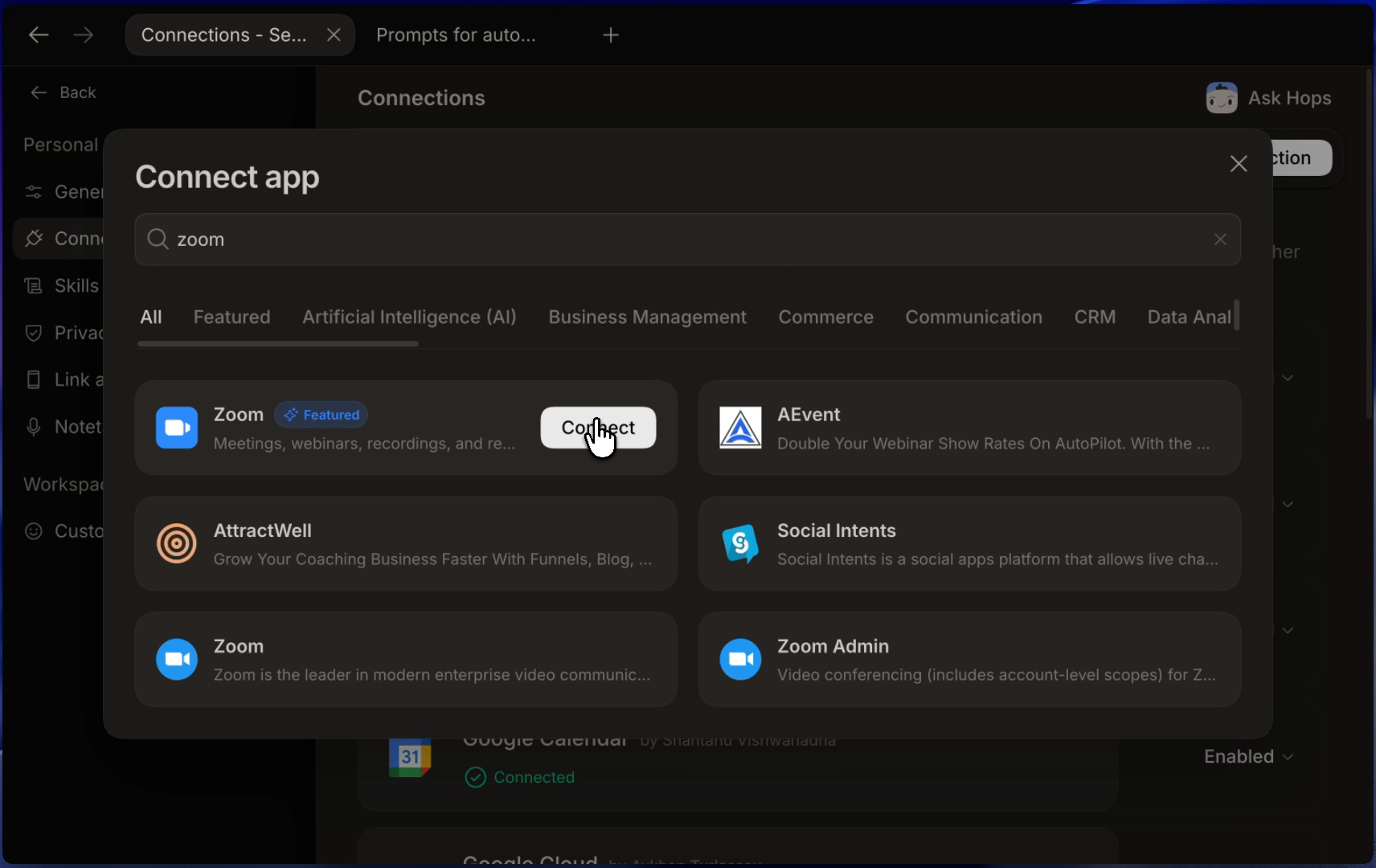
Authorize Hops in Zoom
Sign in to Zoom if prompted and click Allow on the Zoom OAuth consent screen. Zoom redirects you back to Hops.
Confirm the connection in Hops
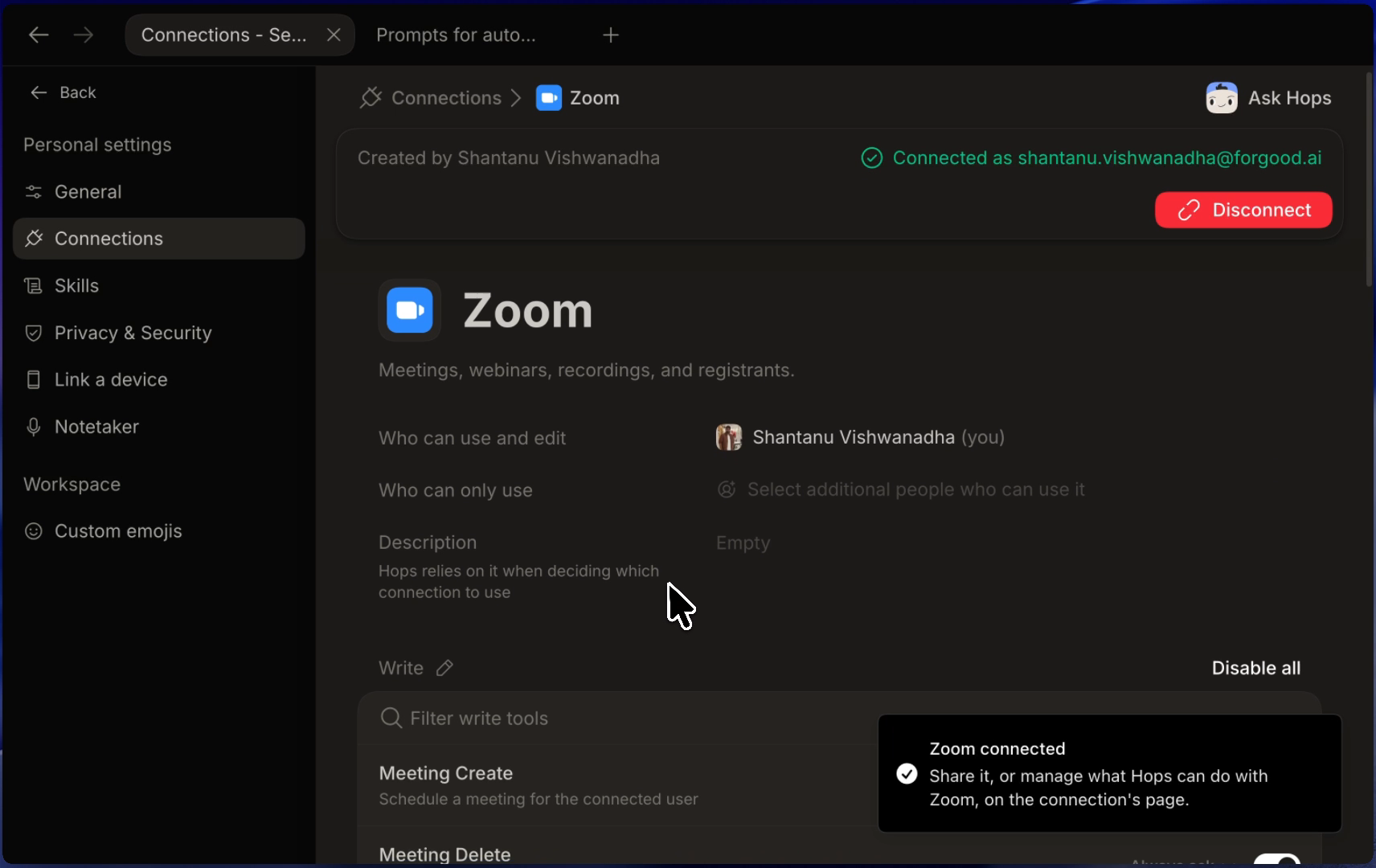
The connection page shows Connected as your Zoom email. Set Who can only use to share it, add a Description so Hops picks the right connection when several exist, and review the per-action toggles.
Actions Hops can run
Each action is a toggle on the connection page — turn it off, or set it to Always ask so Hops pauses for approval before running it.
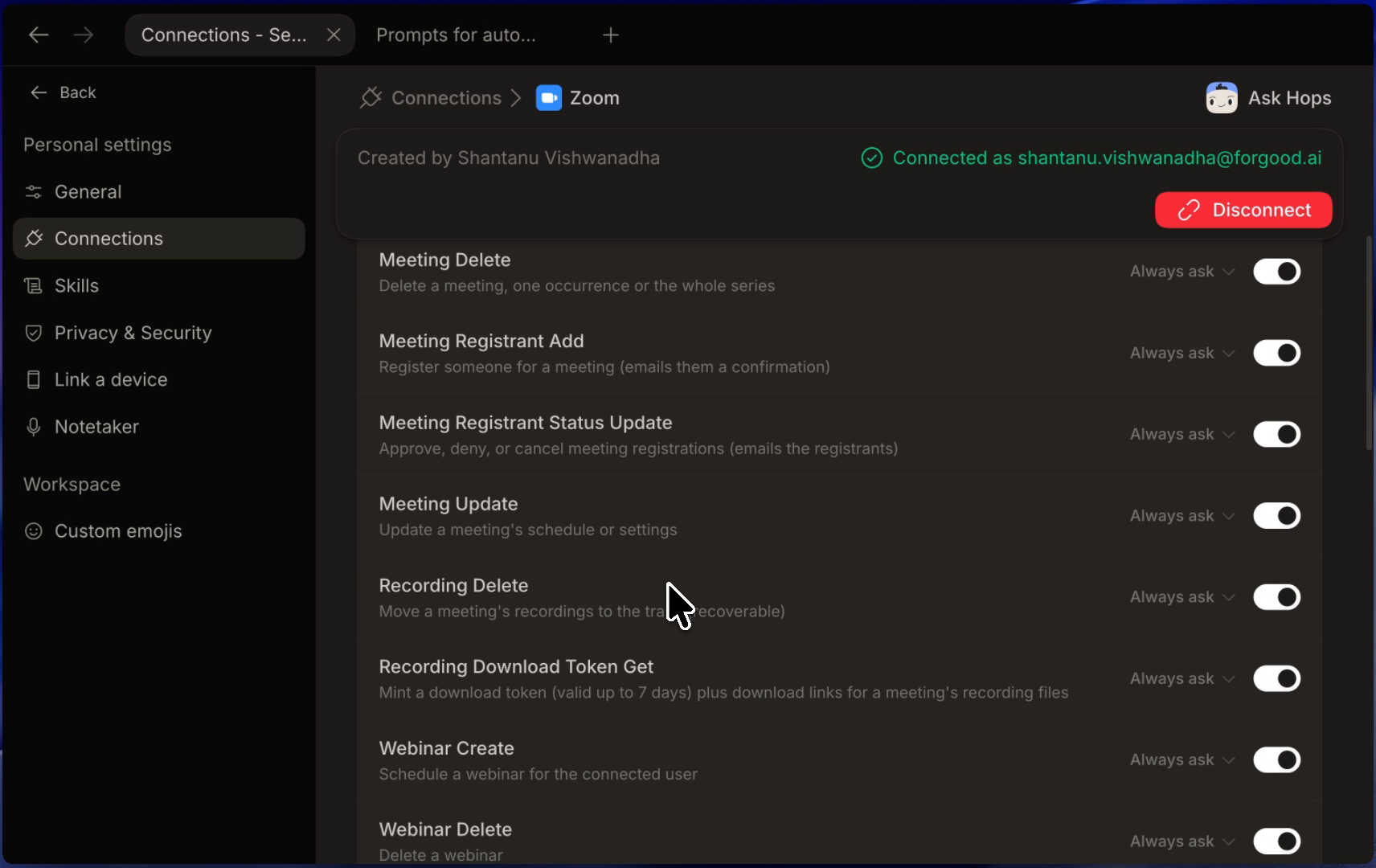
| Category | Actions |
|---|---|
| Meetings | Create, Update, Delete, Get, List |
| Meeting registrants | Add, Status update (approve / deny / cancel) |
| Recordings | List, Get, Delete, Recording download token get, Meeting transcript get |
| Webinars | Create, Update, Delete, Get, List |
| Webinar registrants | List, Participants list, Q&A list |
| User | User Me (read the connected user's Zoom profile) |
Hops does not use Zoom data to train Hops or third-party foundation models. Hops processes Zoom data only as necessary to provide the service and as described in our Privacy Policy.
Use cases
Sharing the connection
By default a Zoom connection is personal. To let other teammates or a group use it:
- Open Settings → Connections → Zoom.
- Under Who can only use, add teammates or a group.
- Add a short Description so Hops picks the right connection when several exist.
Disconnect
- From Hops: open Settings → Connections → Zoom and click Disconnect.
- From Zoom: open the Zoom App Marketplace, find Hops in Installed Apps, and click Remove.
Support
- Help centre: Hops docs and the Troubleshooting guide.
- Email: [email protected]
If you hit an authorization or permissions error, include the timestamp and the Zoom user you signed in as — that's enough for us to look up the OAuth callback and reply quickly.
Zoom is a trademark of Zoom Communications, Inc. Hops is not affiliated with or endorsed by Zoom Communications, Inc.