
Apps
Build small internal tools your team can open and use inside Hops, such as a help desk, a support inbox, or a lightweight CRM.
Beta Apps is in beta. Expect rough edges.
An app is a small tool that lives in your workspace. You describe what you need, Hops builds it, and your team opens it from the Apps section in the left sidebar. Apps can read and write your Tables and use your connections, so they work with the data you already have.
When to use an app
| Use this | When you need |
|---|---|
| Doc | Written content, notes, reports. |
| Table | Rows of structured data you can filter, group and view as a calendar. |
| Automation | Work that runs on a schedule or trigger. |
| App | A purpose-built screen on top of your data, with its own tabs, filters, forms and buttons. |
The Apps page
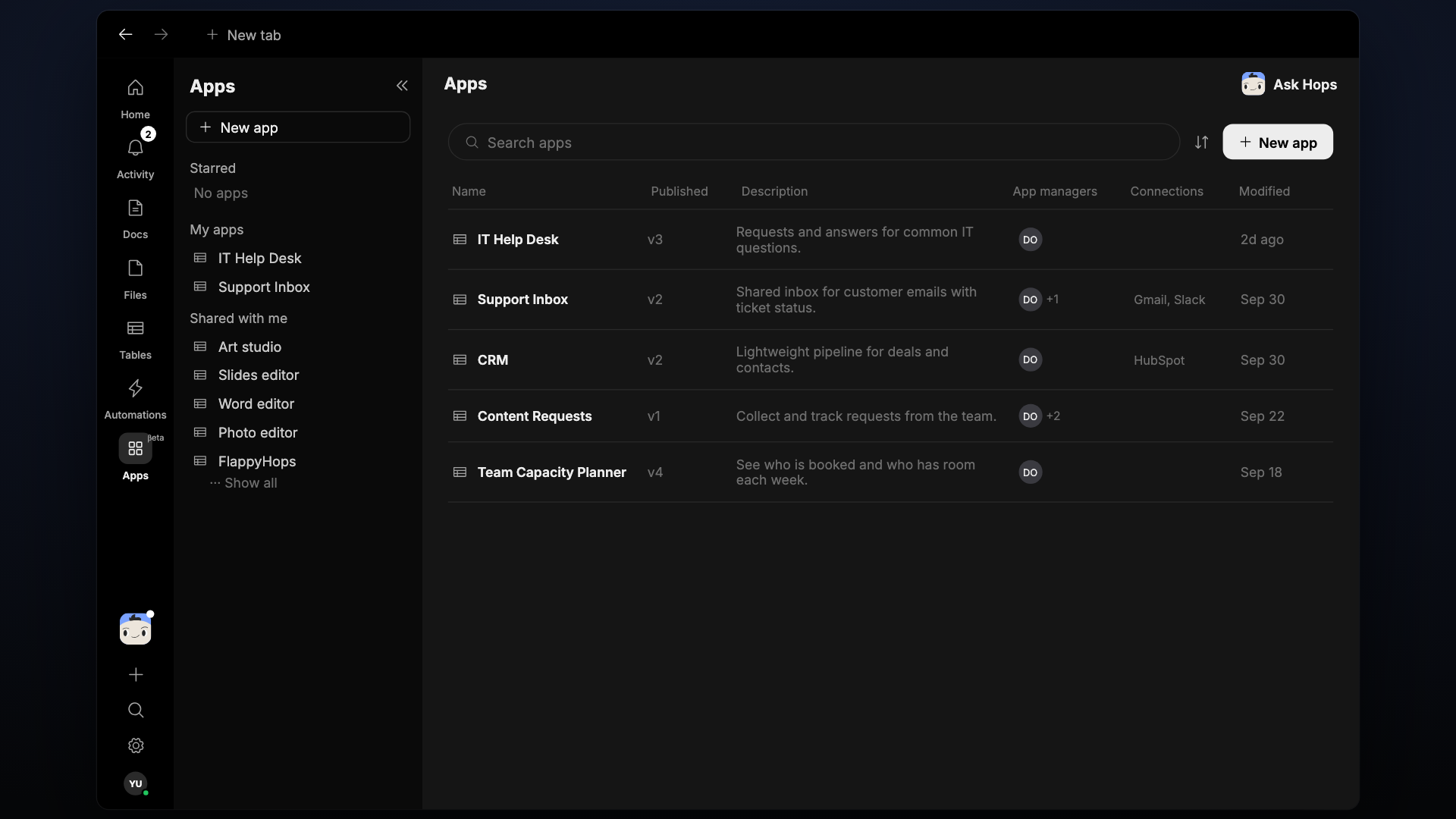
The Apps page is a table of every app you can open. The columns are:
- Name — the app's name.
- Published — the version that is currently live, for example v3.
- Description — a one-line summary of what the app does.
- App managers — the people who can edit and publish the app.
- Connections — the integrations the app uses, such as Gmail, Slack or HubSpot.
- Modified — when the app was last changed.
Use the search box to find an app by name, the sort icon to change the order, and New app to create one. Ask Hops in the top right opens a chat with Hops from anywhere on the page.
The panel on the left groups your apps into three sections:
- Starred — apps you have marked as favorites.
- My apps — apps you created.
- Shared with me — apps someone else has shared with you. Choose Show all to expand the list.
Open and use an app
Click an app to open it. The breadcrumb at the top shows Apps followed by the app name, and next to it who the app is shared with, for example Shared with 2 people. The version you are viewing appears below, for example v2.
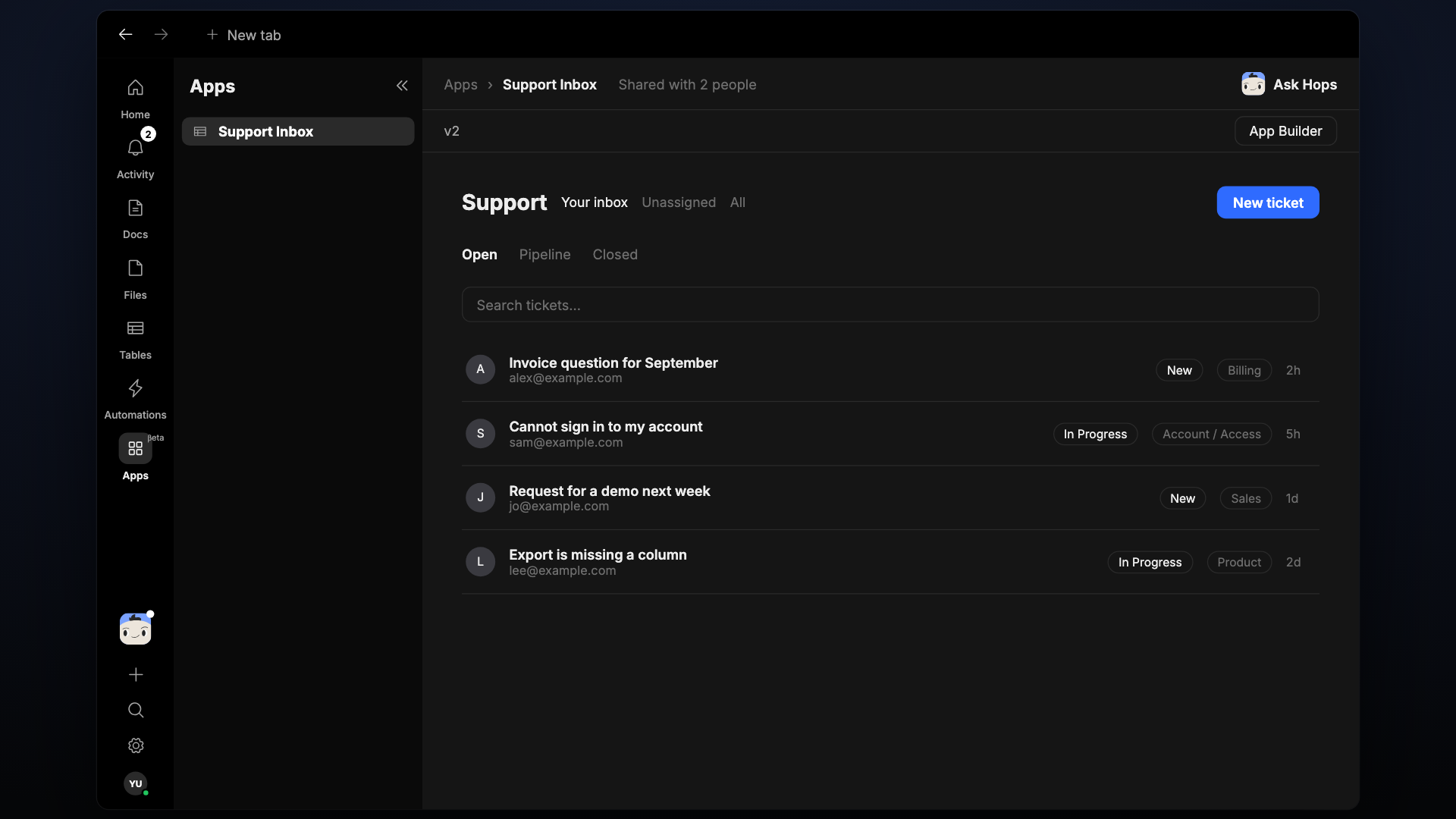
Everything inside the canvas is the app itself. In this support inbox example that means tabs for Your inbox, Unassigned and All, a status filter for Open, Pipeline and Closed, a search box, a New ticket button, and a list of tickets with status and category chips.
Apps you can edit show an App Builder button at the top right. The ... menu next to the app name lets you Star, Copy link, or Delete the app.
Create an app
Click New app
Click New app at the top of the page or in the left panel. Hops opens the App Builder with an "Untitled app".
Describe your app
Fill in the form and click Generate app:
- What should your app do?
- Who will use it? (optional)
- What data should it work with? (optional)
- Key screens (optional)
- Any comments (optional)
Refine with Ask Hops
Use the Ask Hops panel on the right to change the app in plain language. Use Preview to try it and Data sources to see what it reads.
Publish
A banner reads "Editing draft - the app is not published yet" until you click Publish. After that, everyone with access sees the published version.
Edit an app
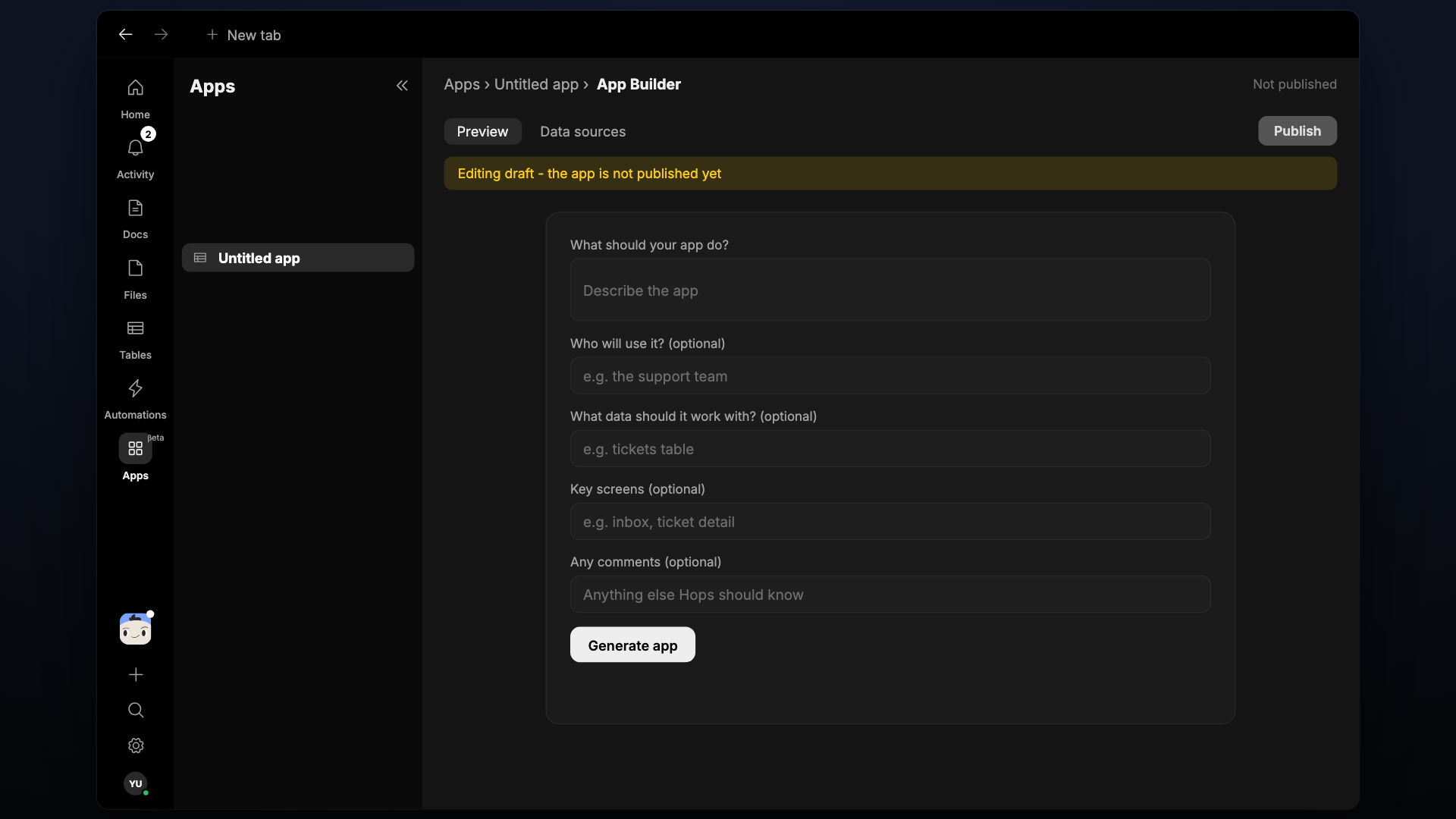
Open the app and click App Builder. The builder has these parts:
- Ask Hops — describe a change, such as "add a priority column" or "make the New ticket button a form". Hops updates the app.
- Preview — try the app as your team will see it.
- Data sources — see which tables and connections the app reads from.
- Publish — make your changes live.
Your edits are saved as a draft. Nobody else sees them until you publish.
Versions
Every time you publish, the app gets a new version. The Published column on the Apps page and the version label at the top of an open app show which version is live, so you can tell at a glance whether an app has been updated. While you are editing, the draft stays separate from the published version.
Sharing and access
- Share an app the same way you share a doc: the top bar shows who has access, for example Shared with 2 people.
- App managers can edit and publish the app.
- Apps that someone shared with you appear under Shared with me in the left panel.
- An app that uses a connection shows it in the Connections column, so you can see what it can reach before you open it.
Data and connections
Apps work with what is already in your workspace:
- Tables — most apps keep their records in a table, so you can also filter, group and view the same data as a grid or calendar.
- Connections — an app can read from services you have connected, such as Gmail, Slack or HubSpot. See Connections.
Use cases
Start from a chat with Ask Hops, or from New app. Each card shows a prompt you can paste.
Tips
- Start small. Generate a first version, then refine it with Ask Hops.
- Name the table and fields in your prompt so the app uses the data you expect.
- Use Preview before you publish.
- Because Apps is in beta, publish important changes during quiet hours and check the result.