

Spaces
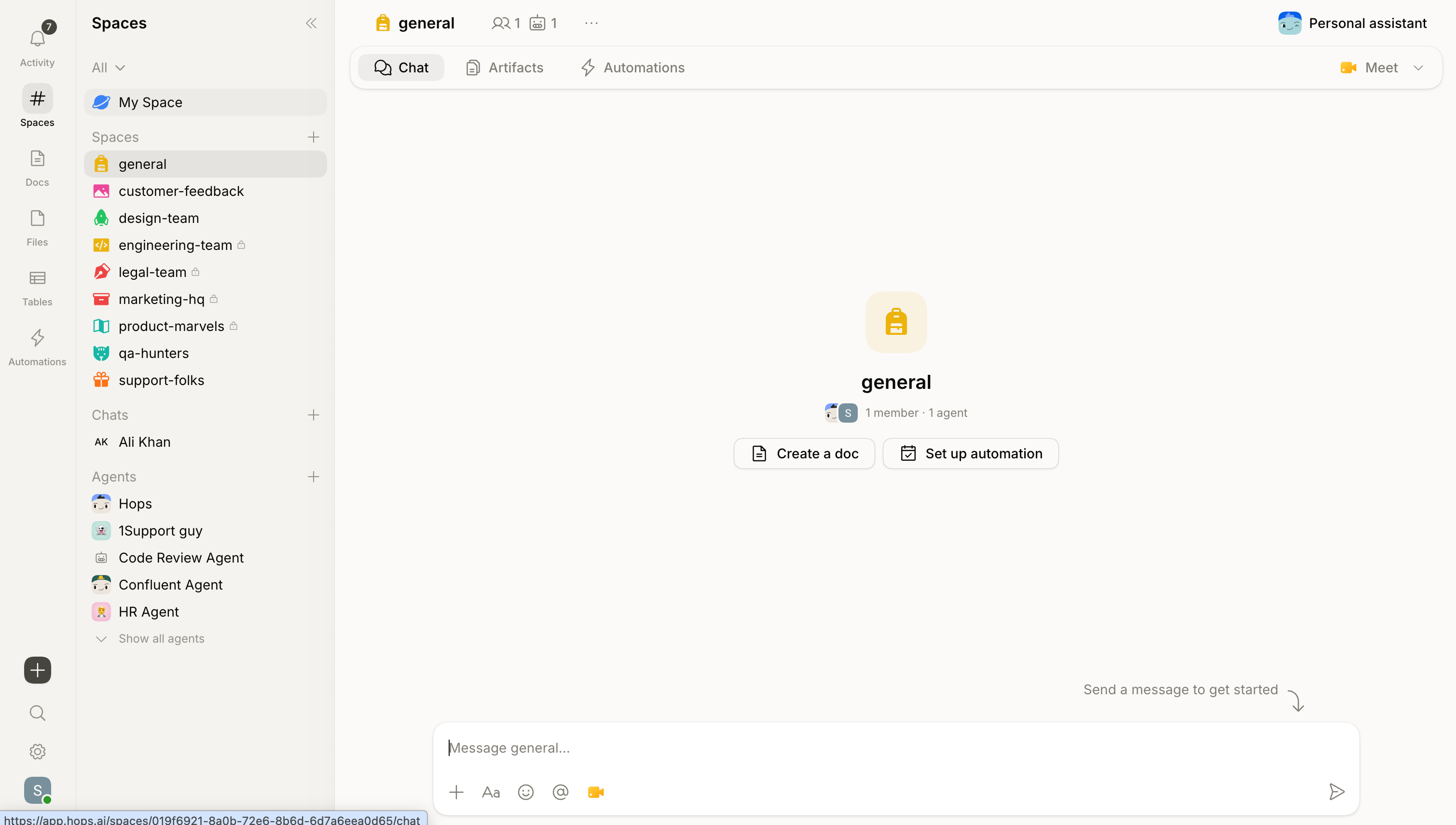
A Space is a project room. It’s where your team has conversations, shares docs, maintains standing context, and works with Hops — all in one place.Create a Space for a launch, a client, or an ongoing team channel. Everything inside becomes context Hops can use.
One Space per project or workflow keeps things focused and makes Hops more accurate.
The Hops agent
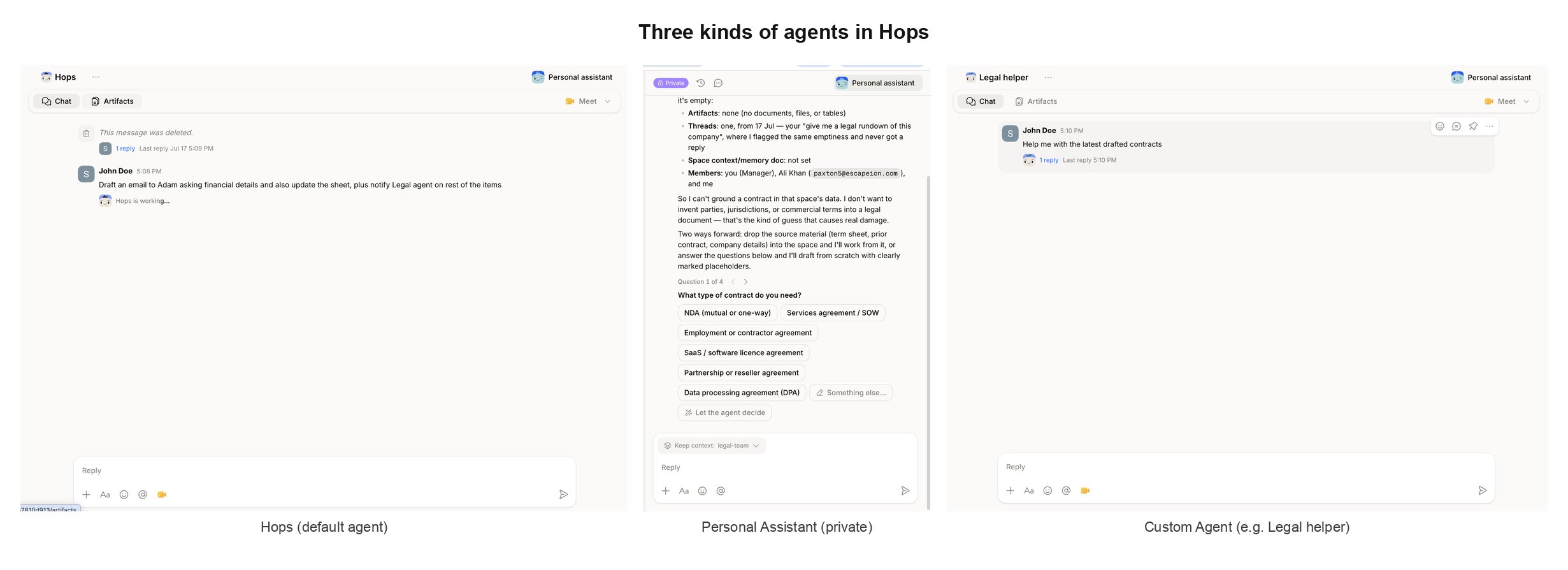
One Hops agent, available in every Space.
@Hops, and uses your team’s actual context to get work done.
@Hopsin Spaces — available in every Space, no setup needed. Uses the workspace’s shared connections.- Skills — installable, shareable capabilities that extend Hops for specific roles. Responses using a skill are attributed like Hops · Pipeline watch.
Shared context
Hops remembers. Every conversation, every doc, and every connected tool adds to a Space’s shared context. The next question already has the background — nobody re-explains the project.Context comes from:
- The Space Context document — a pinned brief Hops always reads
- Conversations in your Spaces
- Docs, files, and artifacts shared with the team
- Tools you’ve connected (Slack, Drive, Salesforce, etc.)
- Previous decisions and work
Connected tools
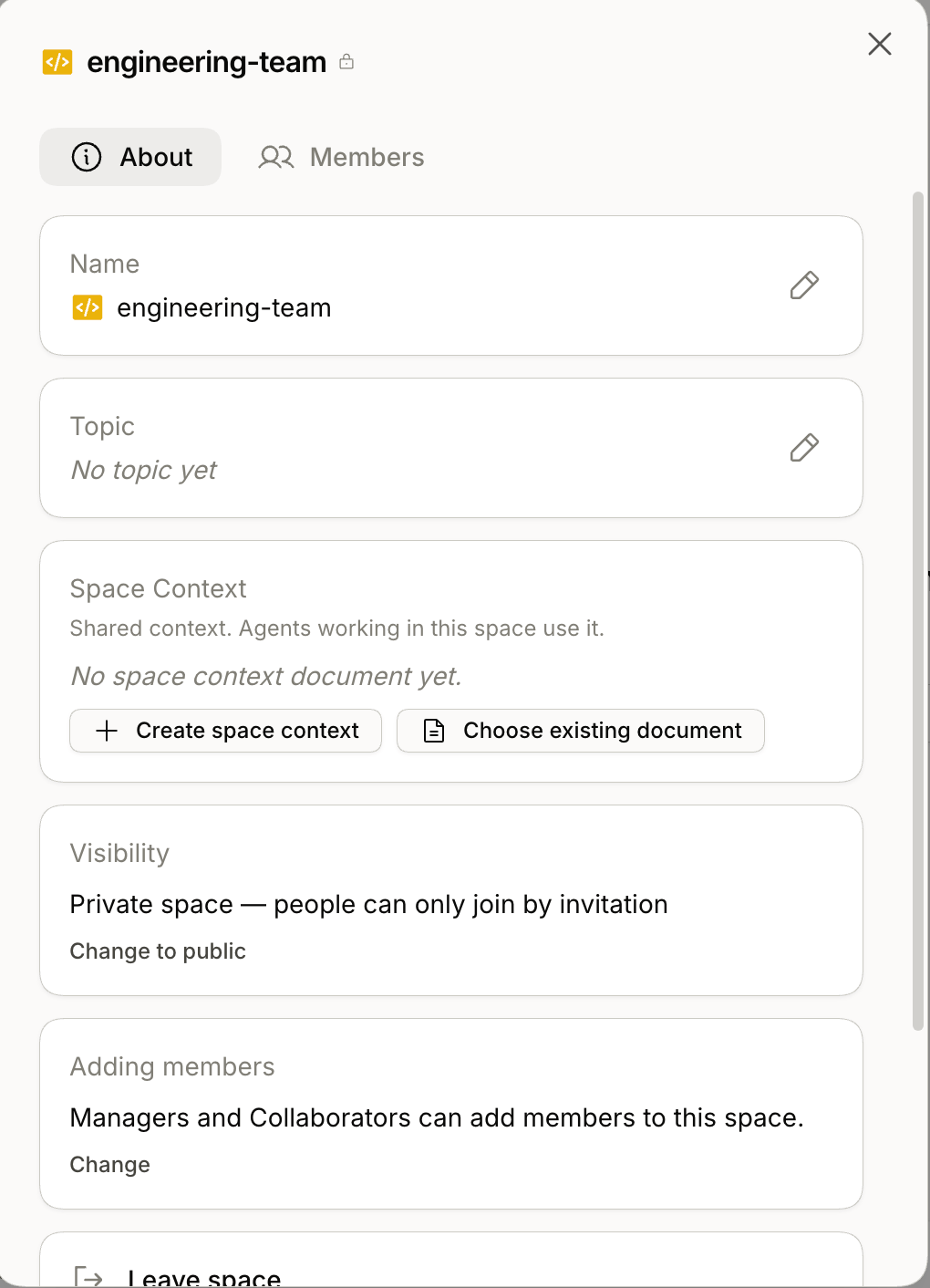
Hops connects to 2,000+ apps via the Pipedream catalog. Once a tool is connected, Hops can read from it instead of you copy-pasting.
- Connections are managed at the workspace level and shareable across your team.
@Hopsin Spaces uses those shared workspace connections.- Skills use whichever connections they were built to need — no separate per-agent auth.
Search
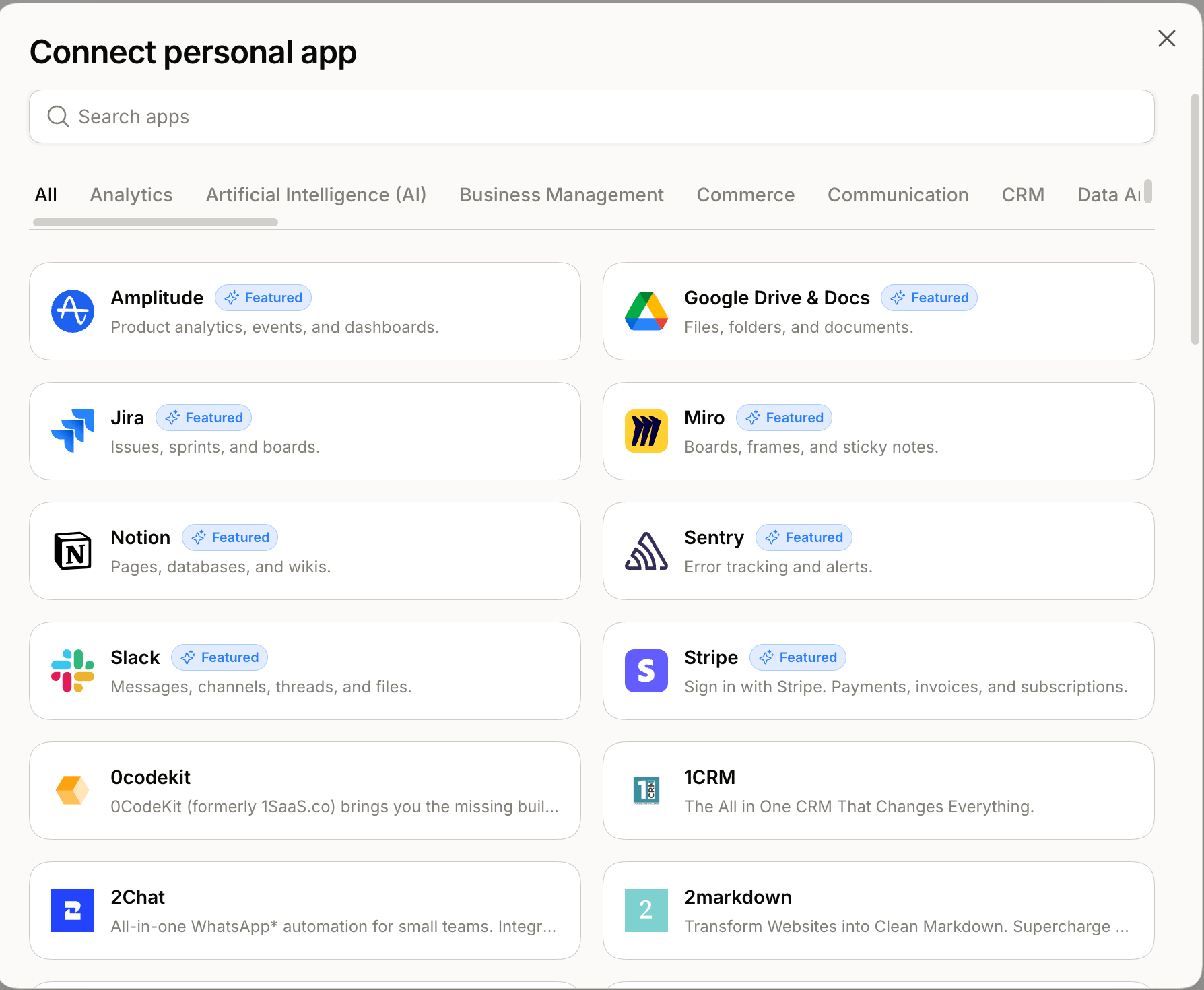
One search covers your whole workspace. Click the Search icon at the bottom of the left sidebar (or press ⌘ K).You’ll find Spaces, docs, files, tables, and messages you have access to. Filter by From, In, Type, or Shared with, and sort by relevance or recency.
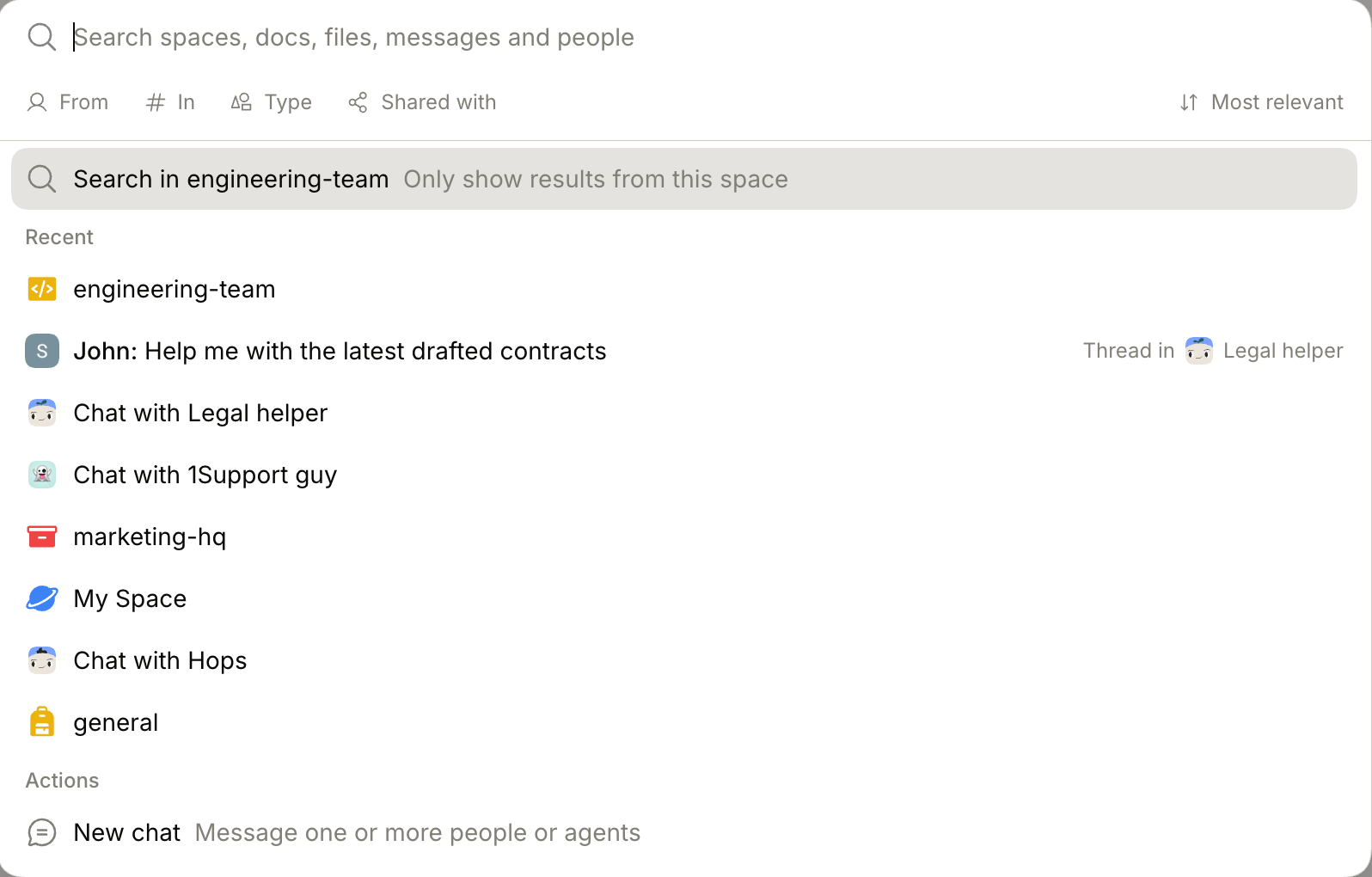
Activity
The Activity tab in the left sidebar is your unified inbox. Every notification lands here — @mentions, thread replies, and Hops updates — so you don’t have to scan each Space.
- Click any entry to jump into the source thread.
- Filter to narrow to mentions, replies, or a specific update type.
- Mark all as read with the double-check icon.
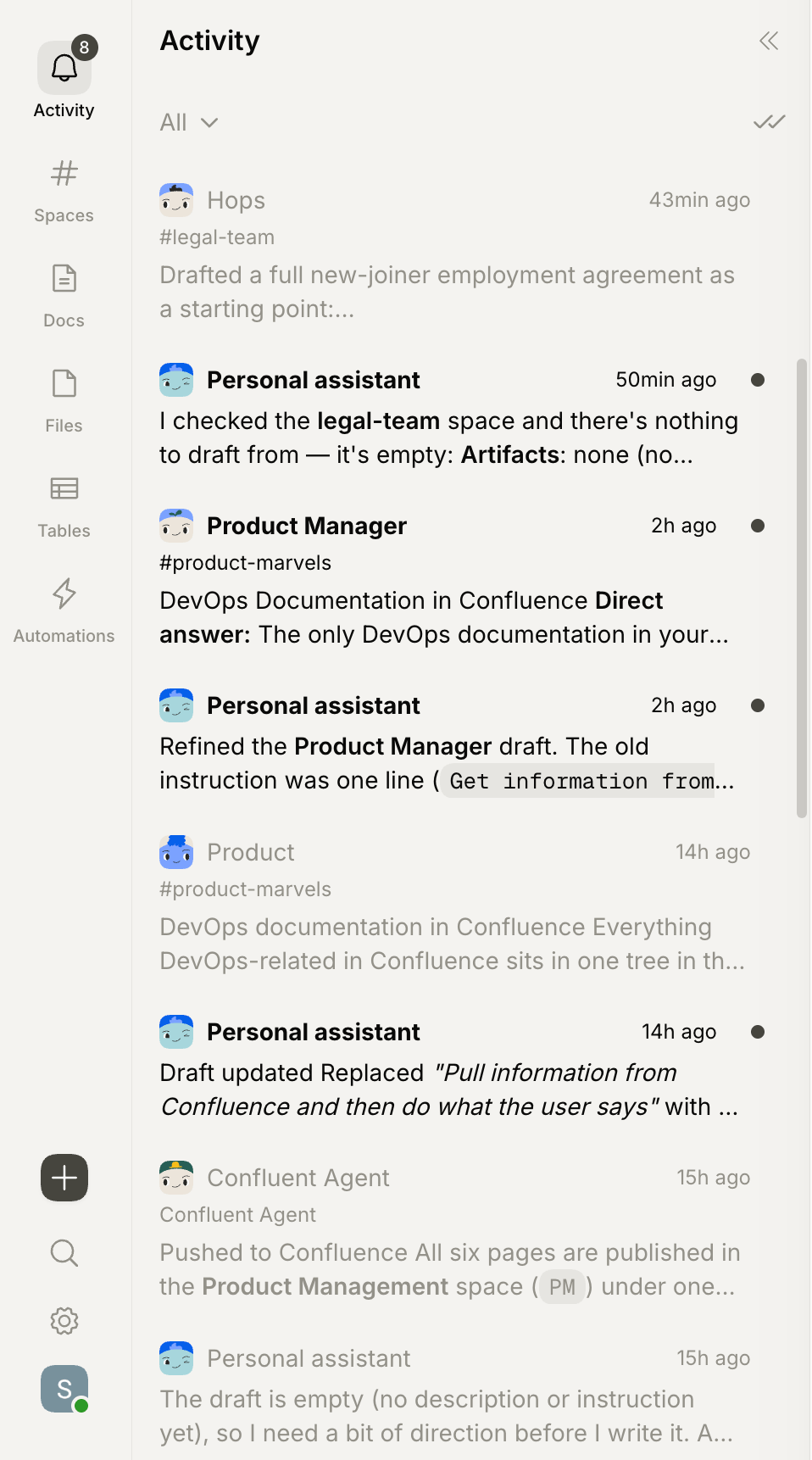
Visible work and control
Every Hops response shows what it used and what it did. Anything with real-world consequences (sending an email, updating a record) asks for your approval first.What’s next
Quickstart
Set up your workspace and talk to Hops in under five minutes.
Spaces
How Spaces organize your team’s work.
Hops agent
One agent, extended by installable skills.
Connect your tools
Plug in the tools your team already uses.