
Connect an app
Add a tool so Hops can read from the apps your team already uses.
Connecting an app takes a few minutes. You'll need access to the external tool you want to connect.
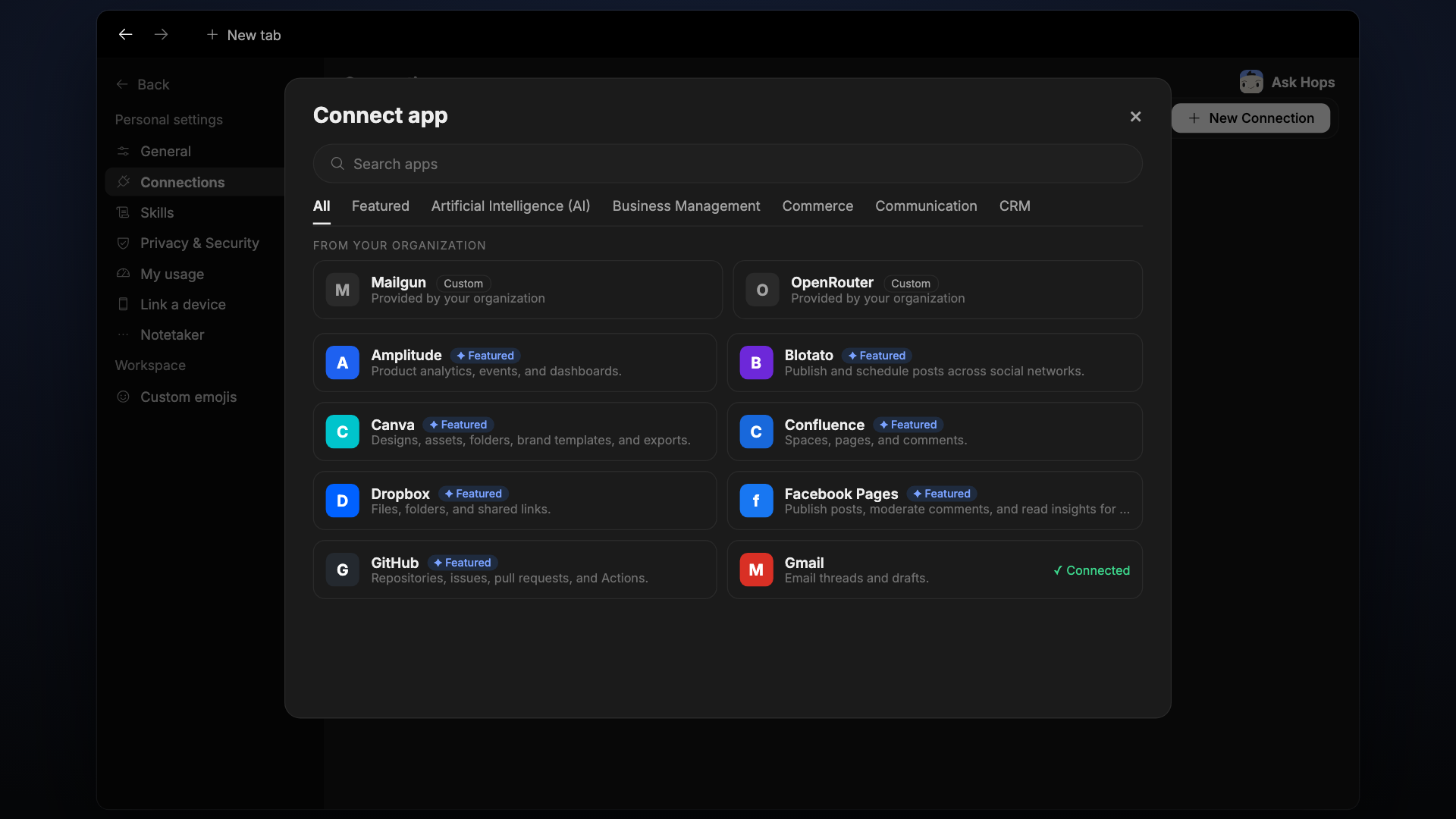
Connect a tool
Open Connections in Settings
Click the Settings icon at the bottom of the left sidebar, then click Connections. Click Connect app.
Find your app
Search by name or browse by category. Featured integrations are highlighted at the top for quick access. 2,000+ apps are available across Analytics, AI, Business Management, Commerce, Communication, CRM, Databases, Design, Developer Tools, Human Resources, Marketing, Productivity, and more, powered by the Pipedream integration catalog.
Authorize access
Click Connect next to the integration. You'll be taken through an authorization flow. Sign in and grant Hops the permissions it needs.
Hops reads with the same permissions as the account you authorize. It won't access anything your account can't see.
Test it
Go to a Space and ask Hops a question that requires information from the tool you just connected. Confirm it finds and cites the right content.
After connecting
Hops will start reading from the tool in its next conversation. It won't retroactively surface everything. It draws from it when a question or task requires it.
Start with one or two tools your team uses every day. You can always add more later.
Troubleshooting
| Issue | What to check |
|---|---|
| Hops can't find content from the tool | Make sure the connection is active in Settings > Connections |
| Authorization failed | Try connecting again and re-authorize through the external tool |
| Missing integration | Search the full list in the Connect app modal or contact support |