
Link a device
Sign in on your phone or tablet by pairing it with this account.
Link a device signs you in on your phone or tablet by pairing it with the account you're using on this computer. Open Settings, then Link a device.
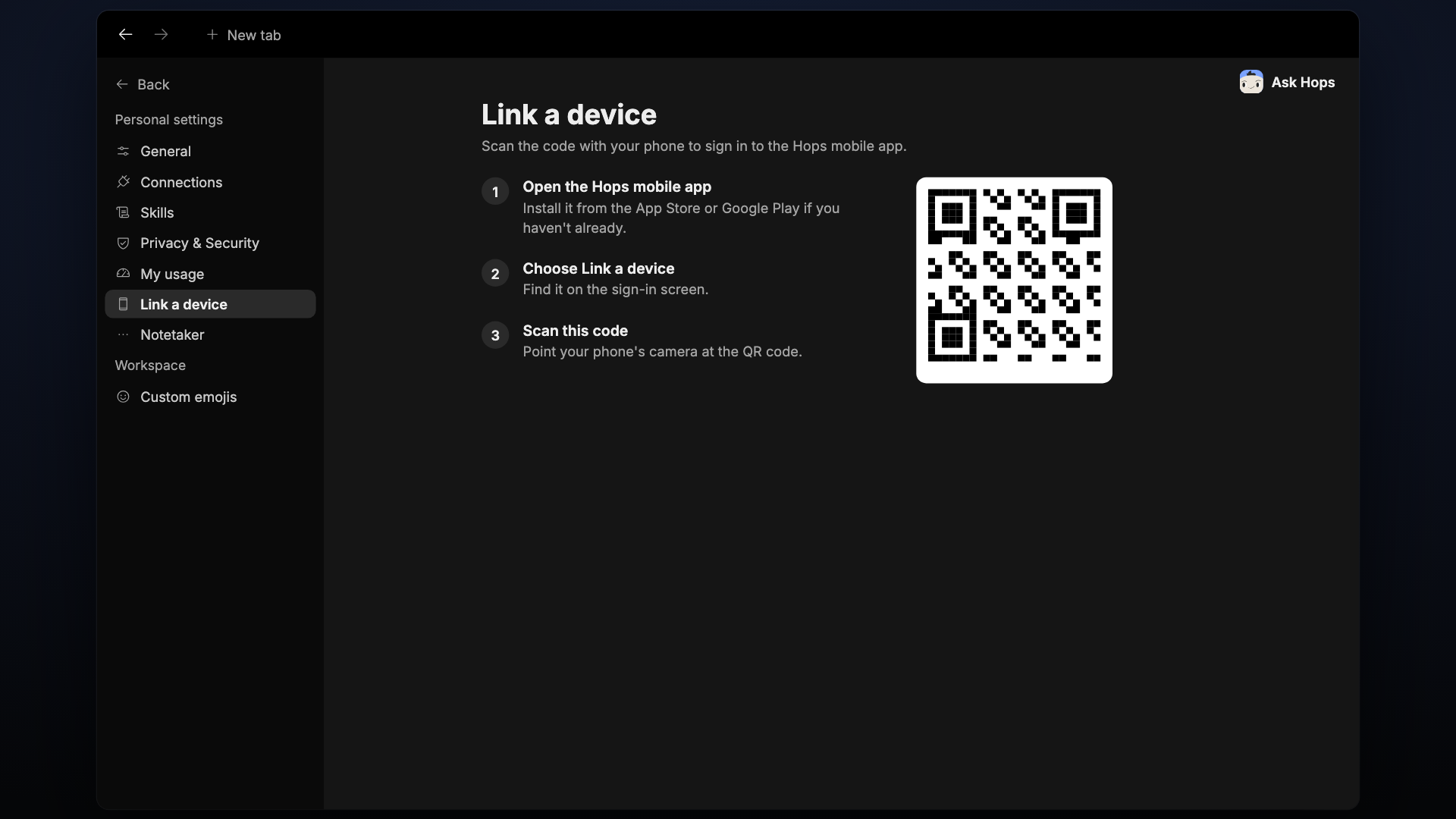
The page shows a QR code and a pairing code in the format XXXX-XXXX, with the label Enter this code in the Hops mobile app. The code is time-limited. The page shows Expires in with a countdown, and a Regenerate button gives you a fresh code.
Only link a device you're holding. Hops will never ask you to share this code.
How it works
Open the app
Install and open the Hops app on the phone or tablet you want to sign in.
Scan or enter the code
On the device, choose Scan code and point the camera here, or type the code in.
Compare and approve
Both screens show the same 6-digit number. If they match, approve it here.
Manage signed-in devices
To see or sign out the devices already signed in, go to Privacy & Security.